
Click here for a video explaining how to use the digital ticket.
- Before purchasing:
- Before use:
- How to use - Activating your ticket -
- How to use - When boarding the Kintetsu train, cable car -
- How to use Using Iga Railways,
Buses and Facilities - When asked for a one-time password (OTP):
Before purchasing:
It is recommended for one reservation per device.
However, if you don’t have multiple devices, please use a single device owned by a representative to purchase multiple tickets in the same reservation.
A maximum of 4 tickets can be purchased per reservation.
Before use:
- Be sure to tap the “Activate Tickets” button on the day you would like to start using the service.
Cancellation is not allowed. - Disable your browser's auto-translation feature.
- Turn off dark mode.
- When using the ticket, turn off the auto-rotate feature on your screen.
- Screenshots of QR code cannot be used for entry or exit.
- If you are accessing from an environment other than where you first displayed your ticket, you will be prompted for a one-time password.
- If you encounter issues, check whether your device meets the "Recommended environment for using digital tickets“
【Recommended environment for using digital tickets】
iOS 15 or later/Safari (latest version), Android 10.0 or later/Chrome (latest version)
*Certain devices or setups may not support ticket usage even in the recommended viewing environment.
How to use - Activating your ticket -
- Be sure to tap the “Activate Tickets” button on the day you would like to start using the service.
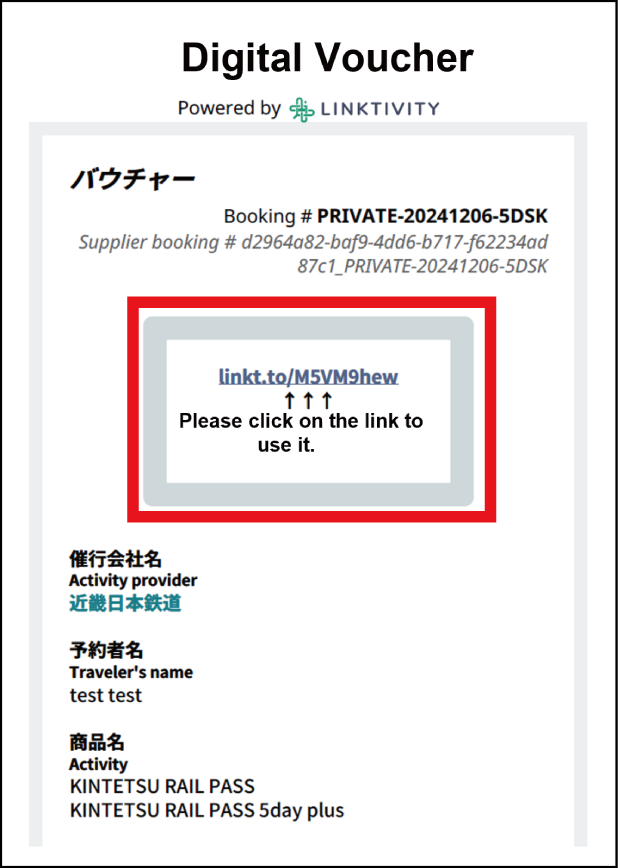
Step1
View the digital tickets from the URL on the voucher.
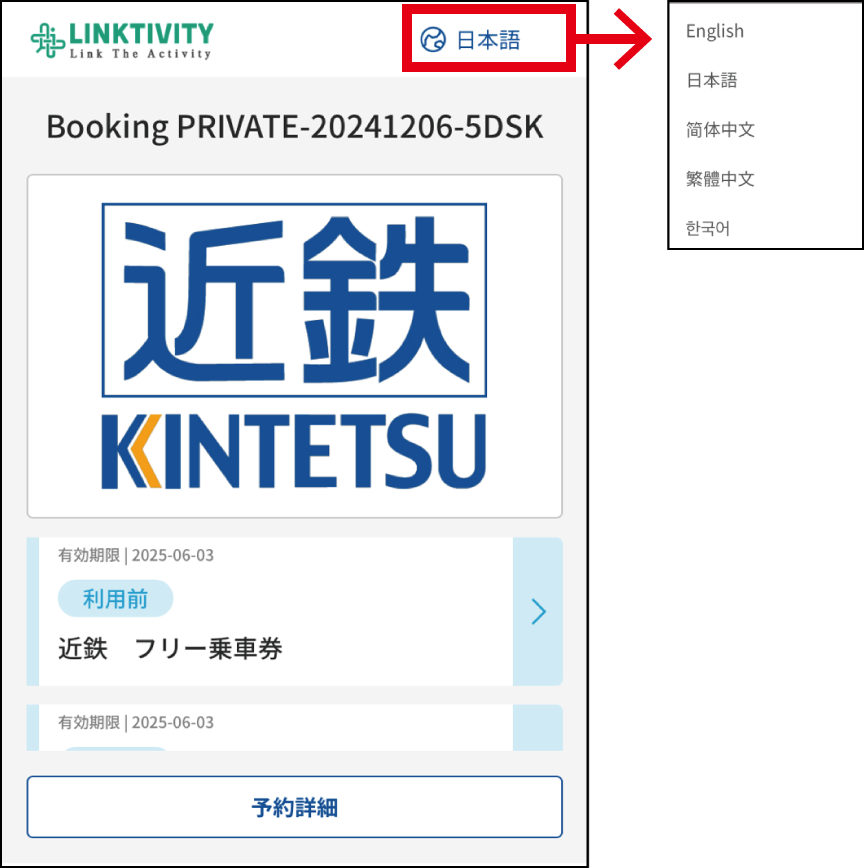
Step2
Switching to your preferred language
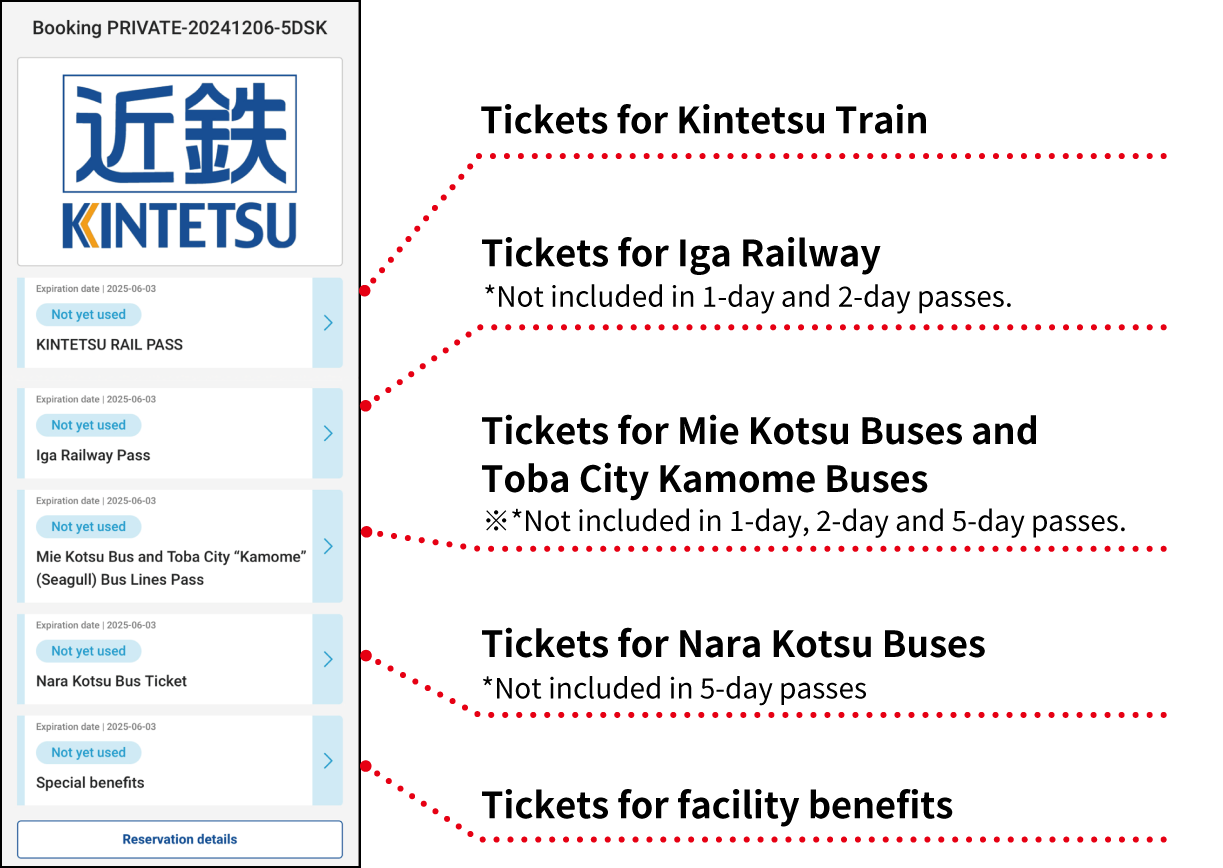
Step3
Displaying your tickets
*Even if you close the browser that displays your ticket, you can access it again from the URL of step ①. The digital ticket can be viewed in the status of the last operation.
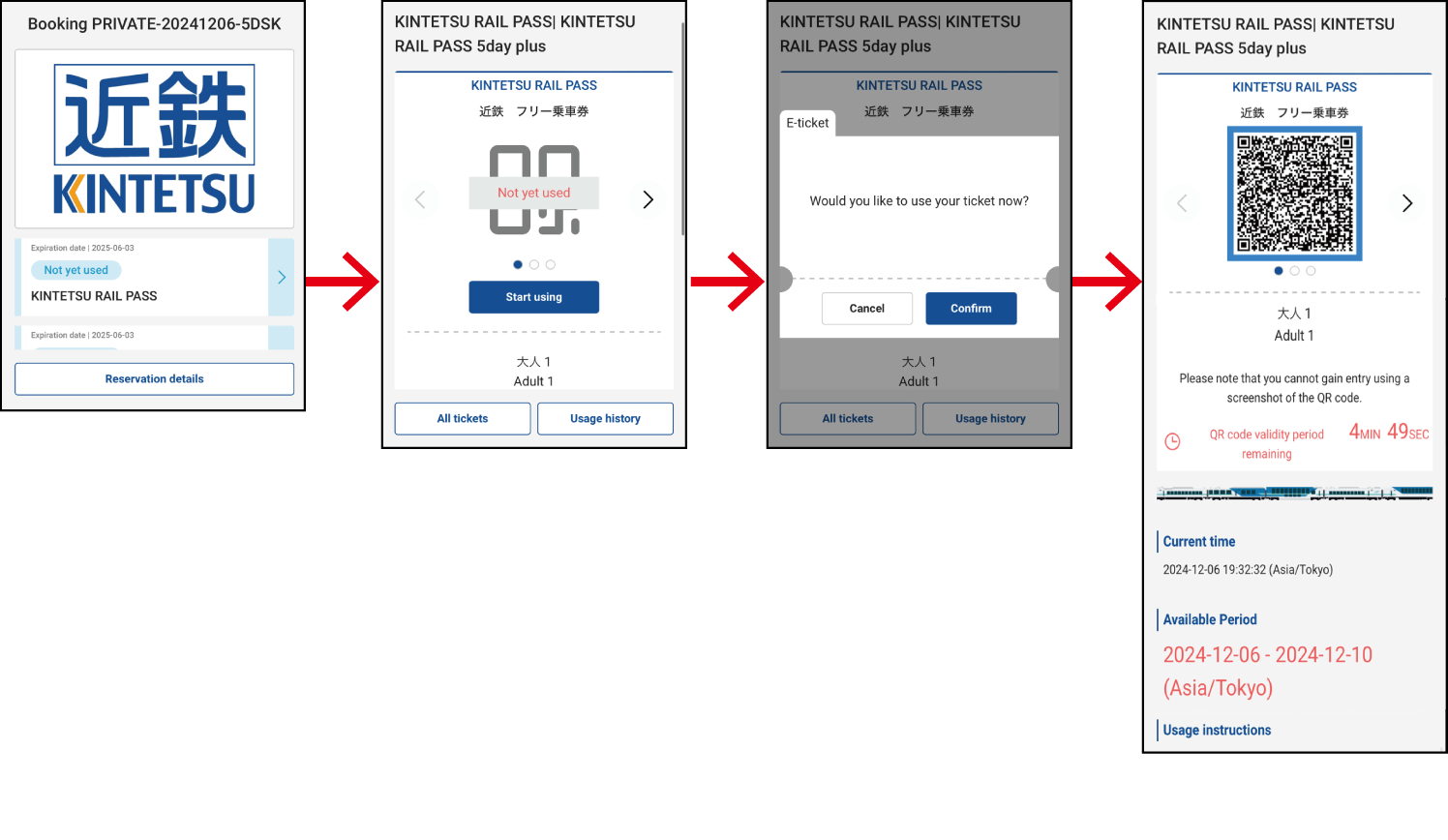
Step4
Tap the mini ticket you wish to use and tap "Activate Tickets".
*Please tap "Activate Tickets" right before using the ticket, on the day you would like to use it.
Once you activate one mini ticket, all mini tickets will be activated automatically.
*After activation, cancellations and refunds are not possible.
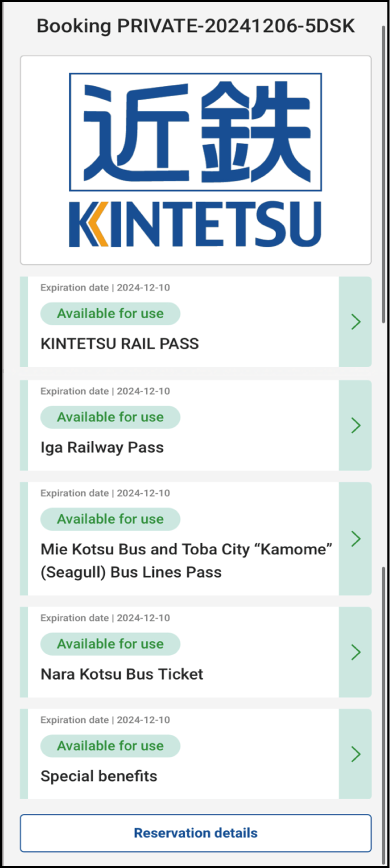
Step5
After activation, the ticket list will turn green.
How to use
- When boarding the Kintetsu train, cable car -
Step1
Tap the mini ticket you wish to use and tap "Activate Tickets" (only necessary for the first ride).
*Please only tap "Activate Tickets" right before using.
Once you activate one mini ticket, all mini tickets will be activated automatically.
*After activation, cancellations and refunds are not possible.
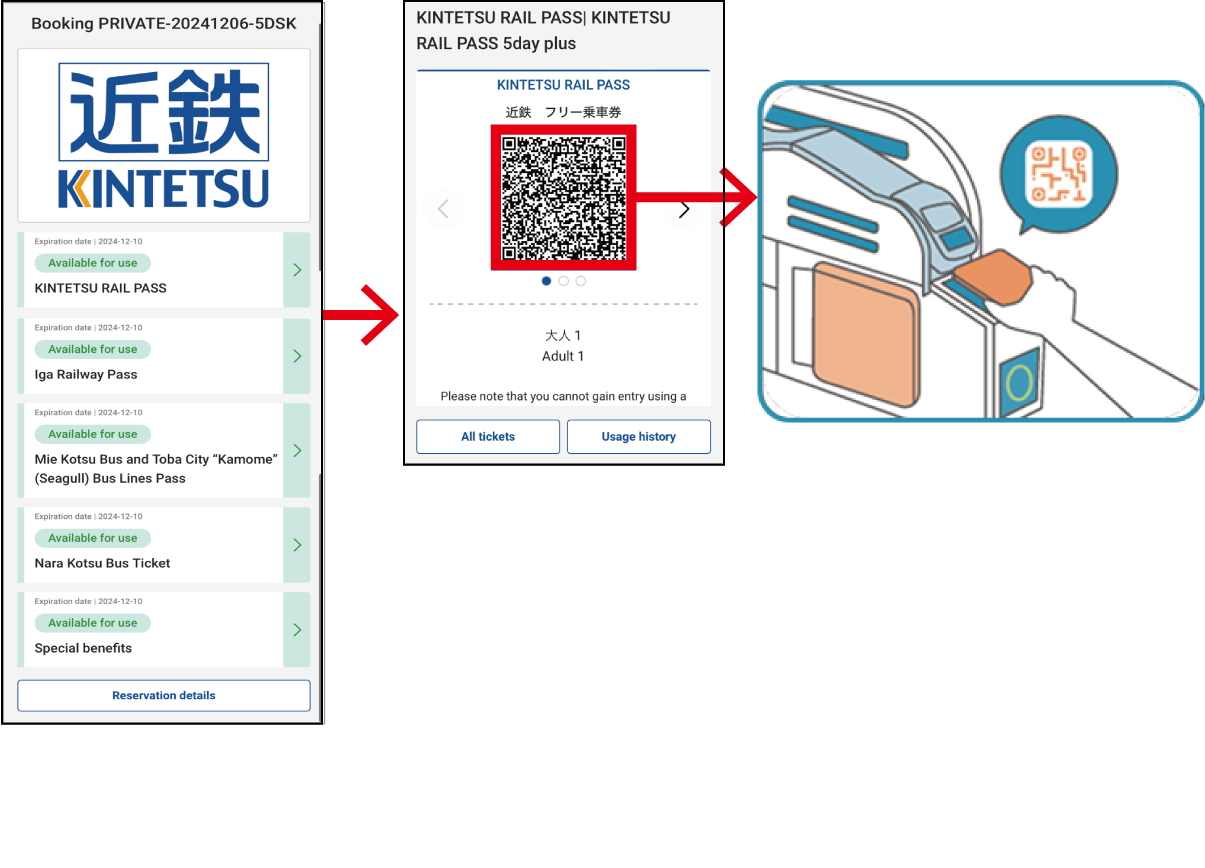
Step2
Tap “KINTETSU RAIL PASS" mini ticket to display the QR code.
Step3
Please hold the QR code over the QR code reader at the ticket gate to enter and exit the train.
* When riding the cable car, please show your Kintetsu unlimited ride mini-ticket to the staff.
* QR codes are updated every 5 minutes. Please ensure that you have an active internet connection.
* If the ticket is displayed for a long time, an error may occur when entering or exiting a Kintetsu train ticket gate. In this case, please refresh the browser that is displaying the ticket.
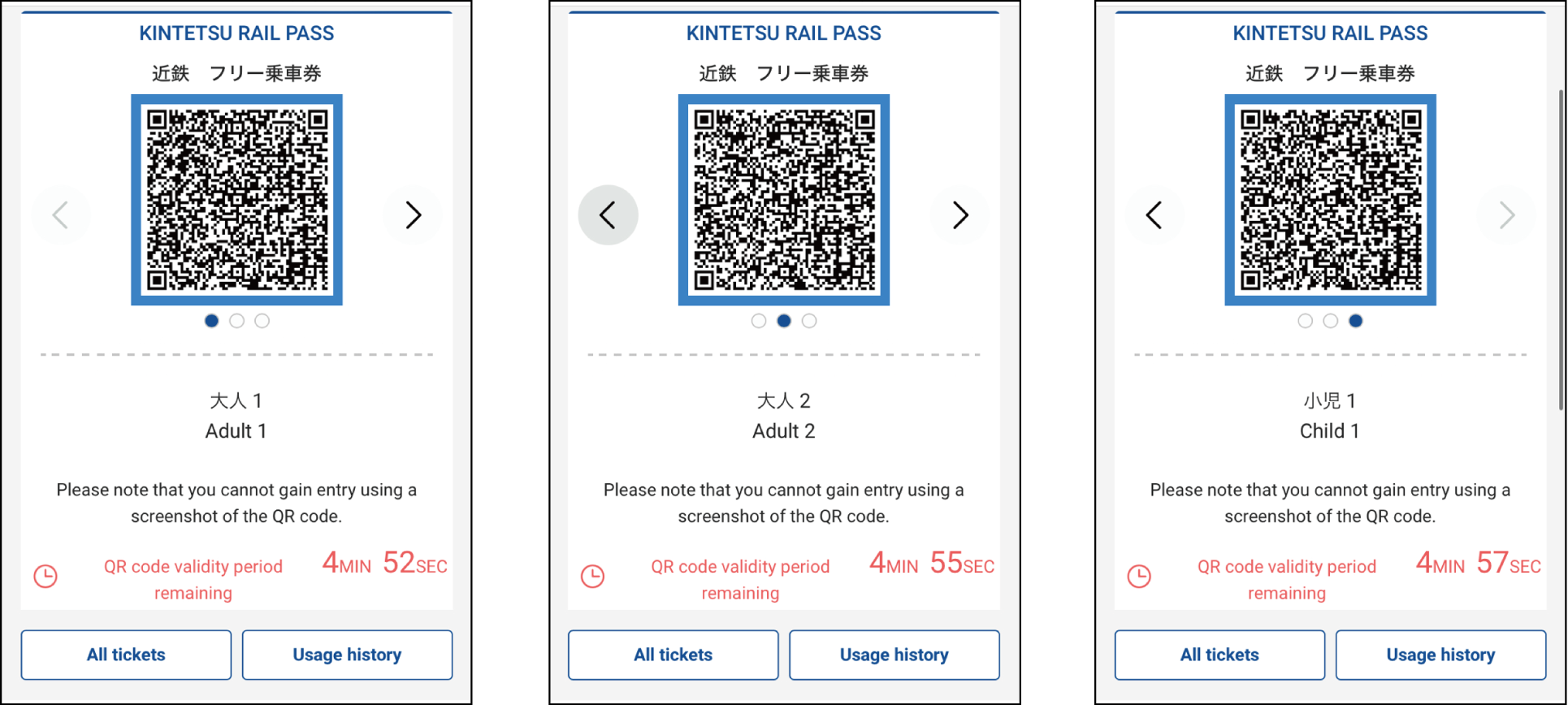
Step4
For multiple tickets in one reservation:
Swipe to view QR codes for each ticket.
The device holder scans the QR codes
sequentially at the ticket gate, allowing the
accompanying persons to pass through first.
1. Scan the QR codeon the reader.
2. Accompanying person No.1 passes through the gate.
3. Scan the second QR code on the reader.
4. Accompanying person No.2 passes through the gate.
5. ~Repeat the process until everyone has passed through the gate.~
6. Scan the last QR code on the reader.
7. The device holder passes through the gate.
How to use
Using Iga Railways, Buses and Facilities
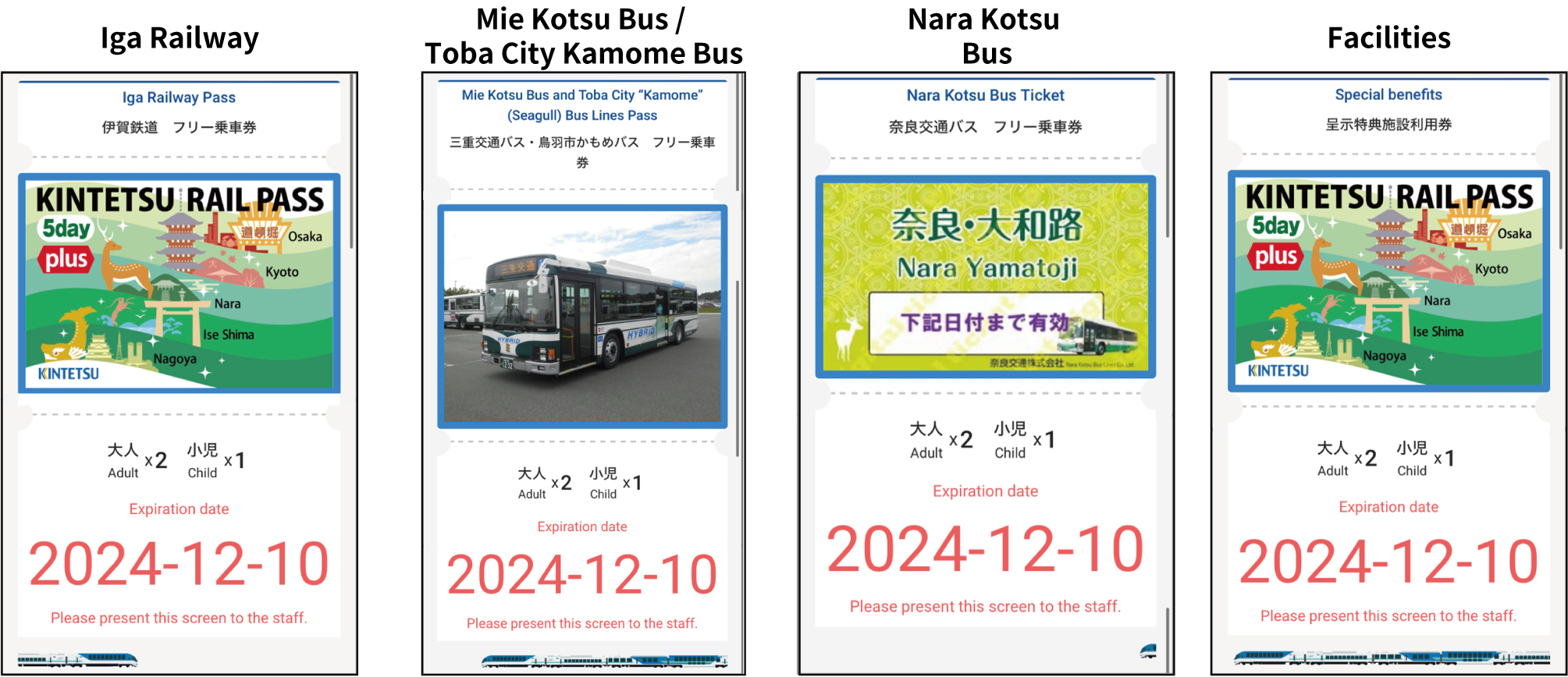
Step1
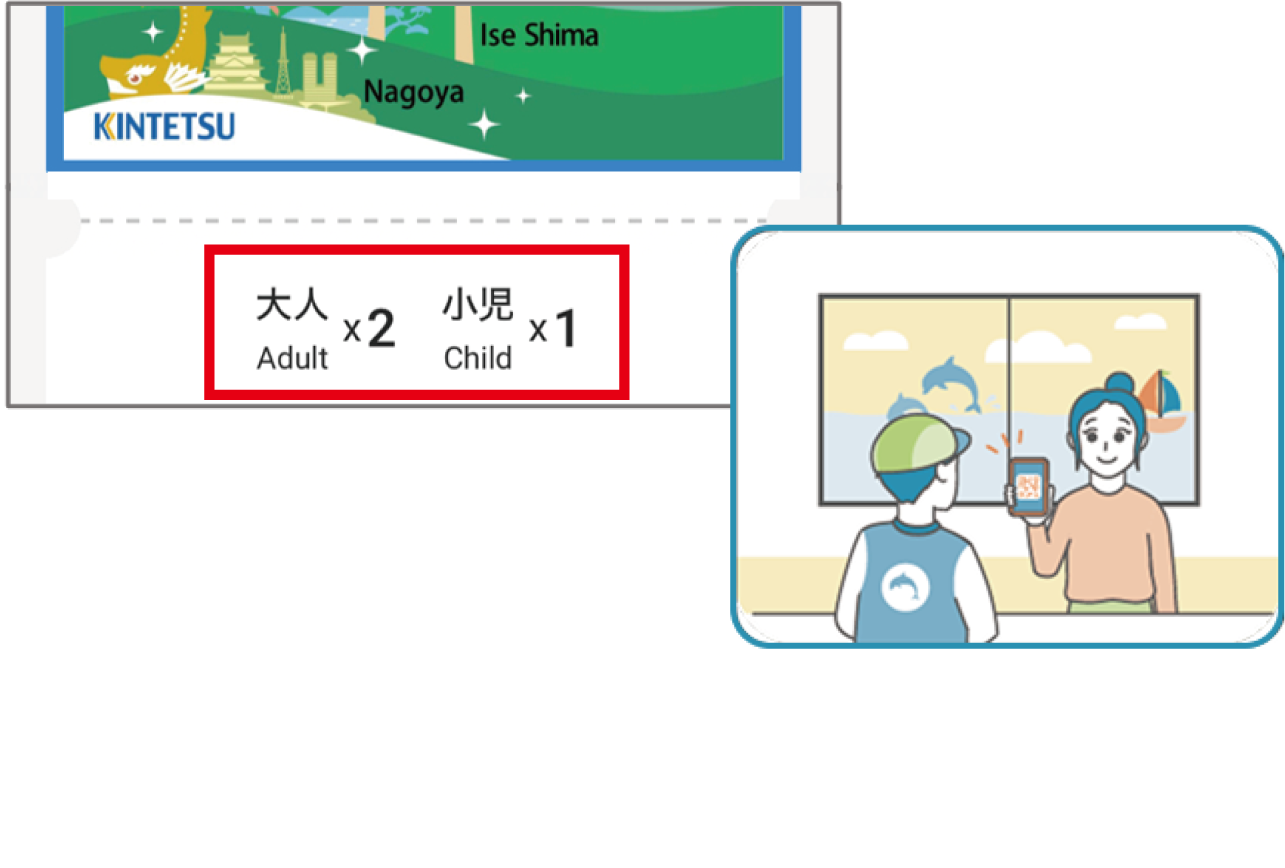
Tap the desired mini ticket to display the image.
Show the image to a staff when boarding Iga Railways, buses, or using facility benefits.
For multiple tickets in one reservation, the number of people will be shown under the image.
Step2
For multiple tickets in one reservation, the number of people will be shown under the image.
*Please ensure that your device is connected to the internet, as we will check whether the display is a live screen or a screenshot.
When asked for a one-time password (OTP):
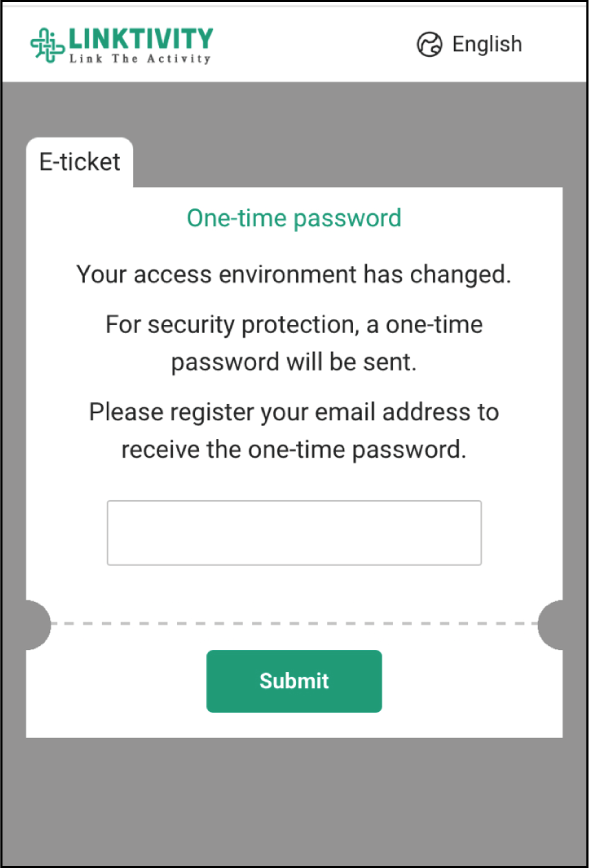
One-time password is required in case you are accessing the ticket display screen from a different device or environment. Please follow the instructions appeared on the screen.
・1 Checked tickets on a PC but switched to a smartphone for usage.
・2 Changed a smartphone to display tickets.
・3 Changed a browser to display tickets.
Step1
Register your email address
*Registered entries cannot be corrected. Please be careful
*Email address cannot be changed after
the registration.
Step2
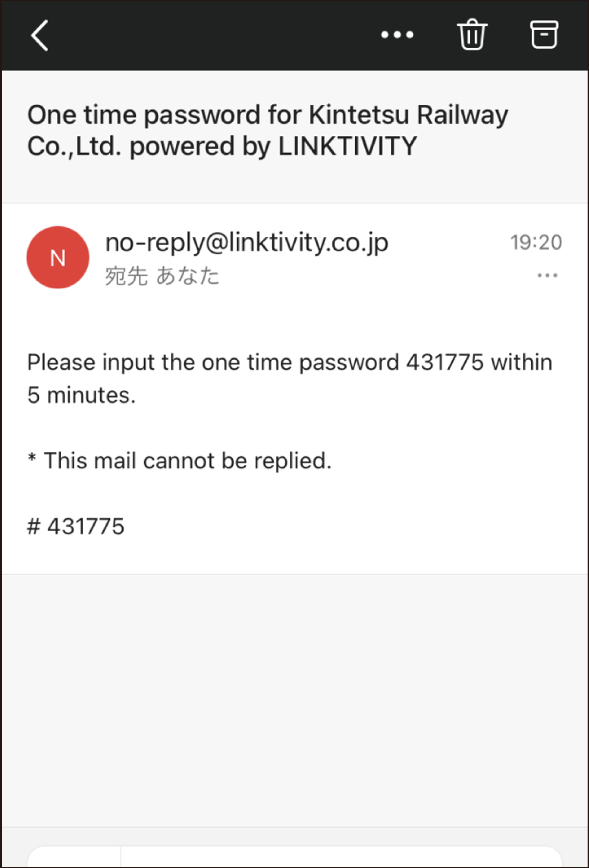
Check for an email
*If you cannot find the email, please check your spam or junk folder.
Step3
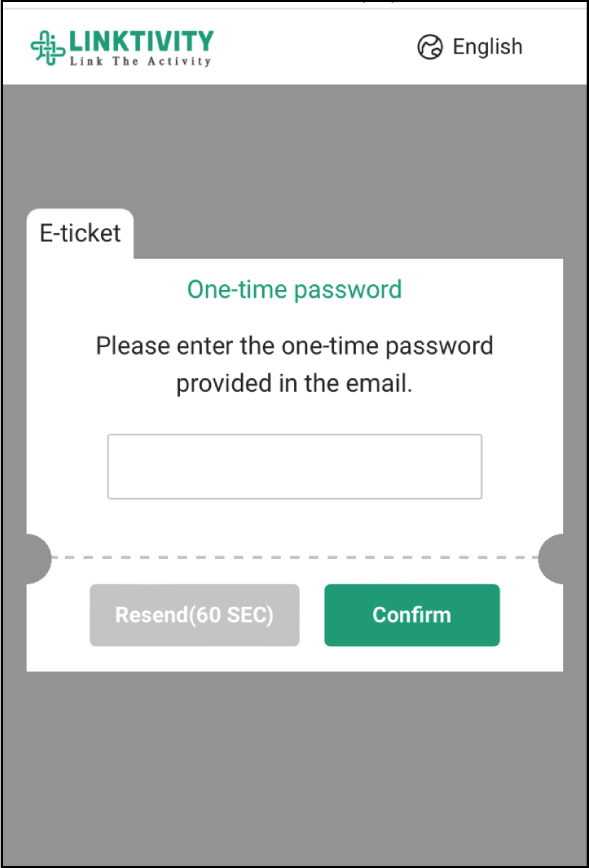
Enter the one-time password received via email
QR Code is a registered trademark of DENSO WAVE INCORPORATED.